Real-time IGW-NET Help
Server Data Filter
If the IGW option is selected from the drop-down menu, the Filter for Well Data window will open. This window allows the users to choose which types of wells to from which to import water level observations import:
• Drift(D) – include wells of any type completed in unconsolidated sediments associated with glacial drift and debris
• Bedrock(R) – include wells of any type terminated in consolidated materials/fractured rock
• Public Supply – water supply wells
• Industrial – wells supporting industrial or commercial activities
• Irrigation – wells used for irrigation needed for agriculture/landscaping
• Residential – domestic-use water wells
• Unknown(U) – water wells without use information
• Other – water wells used for some other purpose than those listed above
Check the radio box next to each option to include it in the well selection for importation, or uncheck to filter it out from the import.
NOTE about transient calibration The observation data "time stamp" must be consistent with the simulation time period. For example, if you try to import SWLs from the Data Center for the period 2000-2005, and your simulation is for the period 2010-2015, IGW-NET will NOT display observation data in the calibration chart after extracting the SWLs.
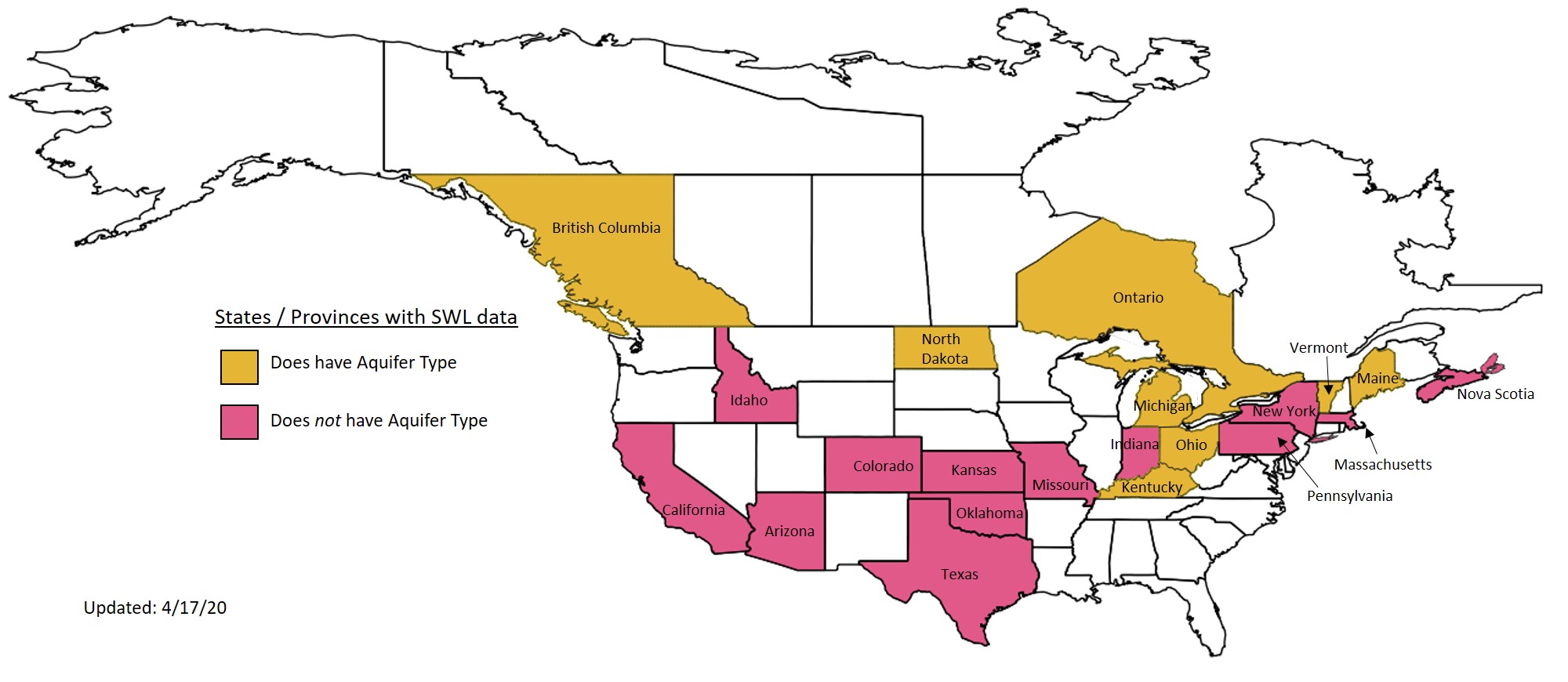
The figure belows shows the current water level data coverage on our server, with an indication of which statewide/provincial datasets include information to distinguish aquifer type at the well screen location (surifical vs. bedrock).
The user may further refine the well selection by specifying a time interval from which to select wells on the basis of well construction date. To include a filter for the earliest date of construction, check the radio box next to ‘From:’ and enter the starting date (year, month, day) in the text boxes provided. To include a filter for the latest date, check the radio box next to ‘To:’ and enter the ending date (year, month, day) in the text boxes provided.
Lastly, the user may restrict the well selection by a specified data range. Check the radio box next to ‘Limit:’, then enter the maximum and/or minimum head values for import into the text box next to ‘Max’ and/or Min (units: meters), respectively.
After all filters have been selected/applied, click ‘OK’ to continue importing data from the IGW server.