Manage Overlay Maps
What is it?
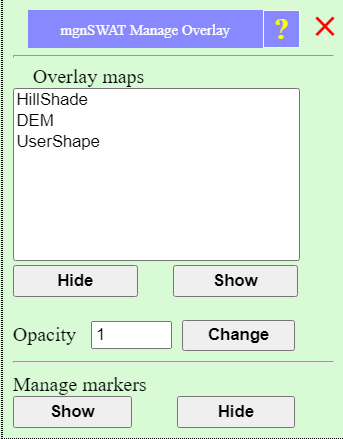
Manage overlay options allow users to show/hide maps, change opacity, and show/hide markers.How to use it:
Show/hide maps
To hide a map, select a map from the list, and click 'Hide'.To show a map, select a map from the list, and click 'Show'.
Change map opacity
To change opacity of a map, select a map from the list, enter a new opacity value (0-1) and click 'Change'.Show/hide markers
To hide markers, click 'Hide' under 'Manage markers'.To show markers, click 'Show' under 'Manage markers'.