When you successfully log into My Account, you will see the same fields for editing that were included in the Hydrosimulatics Sign Up Form (Section 2), but also additional features related to user accounts. In the bottom-left, information related to the Account Type, the date the account was created, and the starting and end dates for premium subscriptions (unlimited grid/computational settings) . Users may also directly view messages sent to their account emails and view recent activity by using the hovering over and clicking the ‘View Message’ or ‘View Activity Report’ hyperlinks just above the Account Type information (see Figure 93).
If the ‘View Activity Report’ option is selected, the user must specify a date (year, month, day) from which to extract an activity report, then click ‘Apply’. The report file will be outputted to the text box just below.
If the ‘Click Available Download List’ option is selected, four clickable icons will appear.
• Clicking ‘IGW2D’ allows users to download/run the free-to-use IGW2D.exe application file on the local desktop.
• Clicking ‘Latest Plane View Image (PRJ)’ downloads/opens a *.bmp image file of the latest model results (plan view display of head contours, velocity vectors, particle pathlines, etc.).
• Clicking ‘Latest Model Results Files (txt)’ downloads/opens a MAGNET model result file which includes the model structure (number of cells, cell size, etc.) and model outputs for each cell (cell index, head, conductivity, bottom and top aquifer elevation). See Figure 1 8 for an example.
• Clicking ‘Latest Model Result Files (Binary)’ downloads a *.bin binary file containing model results from the last time-step (or steady-state results), specifically, the 2D or 3D head distribution and solute concentration distributions. This *.bin file can be uploaded to MAGNET to provide initial/boundary conditions for a new model as described Section 3.6 (feature coming soon).
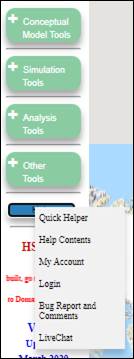
Figure 92: Main Menu Help Page buttons.
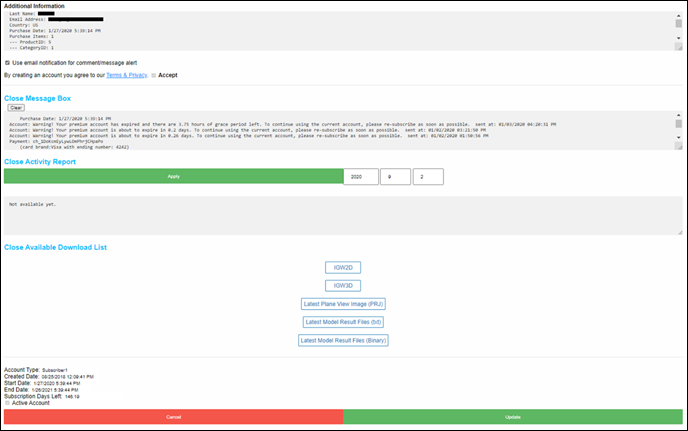
Figure 93: Accessing the Message Box, Activity Report and Available Download List under My Account.